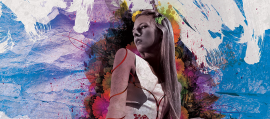
Double exposure was originally a film photography technique where two images were exposed on the same frame. The result is a dreamy blend of both images, often combining a portrait with a landscape or texture. In Photoshop, you can recreate this effect with far more control than any film camera could offer.
This tutorial walks through the entire process from image selection to final polish. You will need two images: a portrait with a clean background and a secondary image with interesting texture, shape, or scenery.
Step 1: Choose Your Images
The portrait works best when it has a simple background and strong contrast.
Side profiles and silhouettes are particularly effective because the outline of the face creates a clear boundary for the second image to fill.
For the secondary image, landscapes with strong organic shapes work beautifully. Think forests, mountain ridges, cityscapes, or cloud formations. Abstract textures like cracked earth, flowing water, or paint splatter also produce striking results.
Step 2: Isolate the Portrait Subject
Open your portrait in Photoshop.
Go to Select > Subject to let Photoshop's AI create an initial selection. Refine the selection by clicking Select and Mask in the Options bar. Use the Refine Edge Brush along hair and complex edges. Set Output to New Layer with Layer Mask and click OK.
Create a new layer below the subject, fill it with white, and you have your isolated portrait.
Step 3: Prepare the Portrait
Convert the portrait to black and white for the cleanest double exposure look.
Add a Black & White adjustment layer clipped to your portrait layer. Adjust the sliders to create strong contrast with deep blacks and bright whites.
Add a Curves adjustment layer, also clipped. Create an S-curve to increase contrast further. This makes the blend mode in the next step more effective.
Step 4: Place the Secondary Image
Drag your secondary image into the portrait document. Place it above the portrait layer. Resize and position it using Edit > Free Transform (Ctrl+T) so that the interesting parts overlap with the portrait's face and body.
For a forest landscape, try positioning the treeline along the top of the head. For a cityscape, align the skyline with the forehead or hairline.
Step 5: Apply the Blend Mode
With the secondary image layer selected, change the blend mode from Normal to Screen.
Screen mode makes dark areas of the secondary image transparent, allowing the portrait to show through. Light areas overlay onto the portrait.
If Screen is too subtle, try Lighten. If too intense, try Soft Light. Cycle through modes by pressing Shift+Plus with the layer selected.
Step 6: Refine with a Layer Mask
Add a layer mask to the secondary image layer.
Use a soft black brush at 30-50% opacity to paint over areas where you want to reduce the secondary image. Common areas to mask: the eyes (so they stay sharp), the edges of the face, and distracting detail areas.
Switch to white brush to bring the secondary image back in any over-painted areas. Masks let you refine endlessly.
Step 7: Add a Color Grade
Add a Gradient Map adjustment layer at the top of the layer stack.
Choose a two-color gradient that sets the mood. A deep blue to light cream creates a moody, cinematic look. A dark teal to warm orange gives a trendy duotone effect.
Set the Gradient Map to Soft Light blend mode and reduce opacity to 40-60%. This adds cohesive color without destroying the tonal range.
Step 8: Final Touches
Add a final Curves adjustment layer. Lift the very bottom of the curve slightly to create a faded film look where the deepest shadows become dark gray instead of pure black.
If you want the subject's outline to be more visible, duplicate the original portrait layer, move it to the top, and set it to Multiply at 20-30% opacity.
Flatten the image when satisfied and apply gentle sharpening with Filter > Sharpen > Unsharp Mask at Amount: 50, Radius: 1.0, Threshold: 0.
Tips for Better Results
Try multiple secondary images before settling on one. High-contrast portraits produce the most dramatic results. Save your layered PSD file before flattening so you can revisit adjustments later with fresh eyes.